
Pipedrive has added the ability to include a delay in workflow automation, which is incredibly convenient! This adds a step to a workflow to “pause” it for a certain amount of time. Now, you can send automated follow-ups or create activities after a certain period of time. Keep reading to learn how to use this excellent feature.
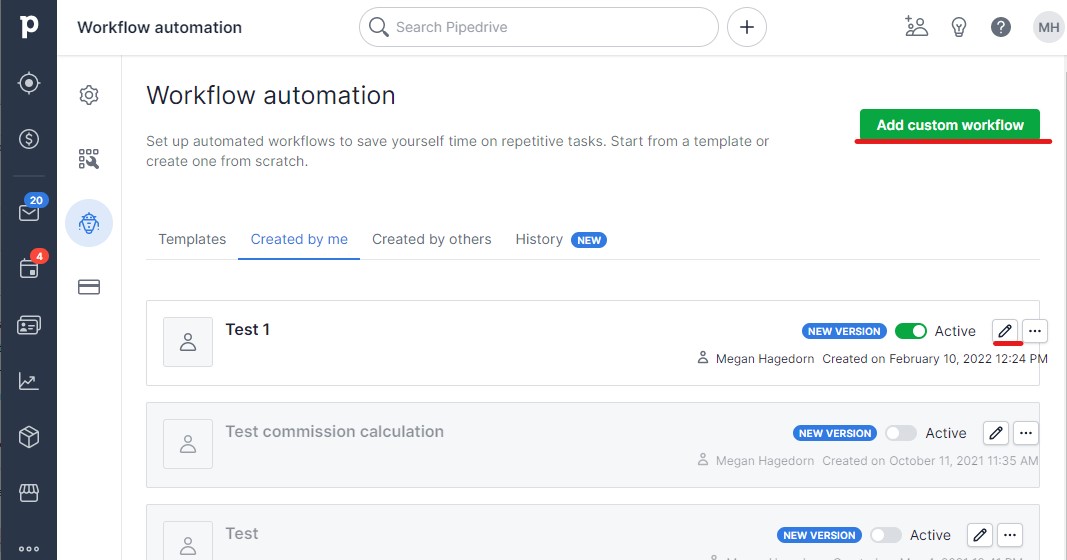
In the left menu, select “…”, then “Workflow Automation”.
Open or create a workflow:
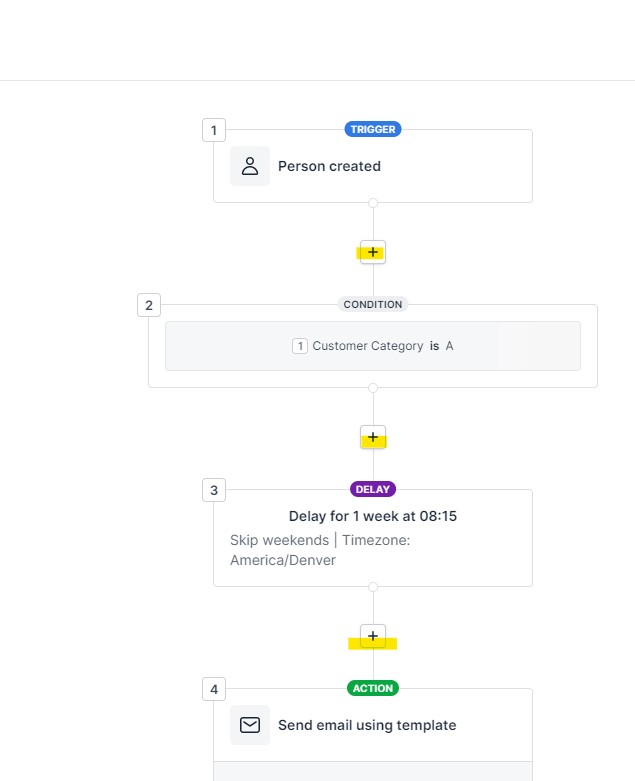
If creating a new workflow, set the trigger, then select a “+” square to add a delay:
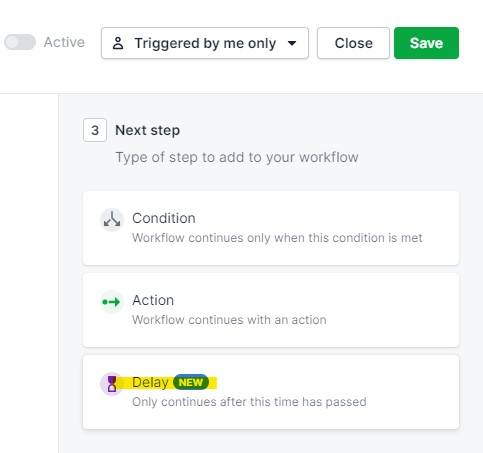
Choose “Delay”:
You can set the Delay to a predefined or custom unit of time (with the option to select weekends!):
Custom:
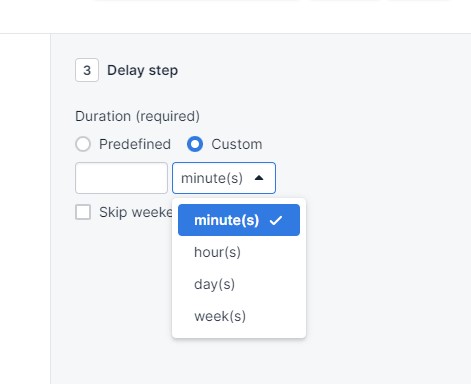
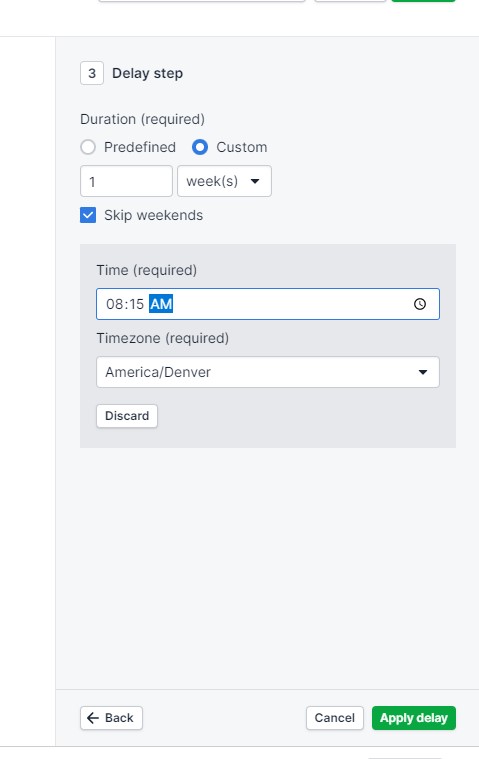
time selection
Predefined:
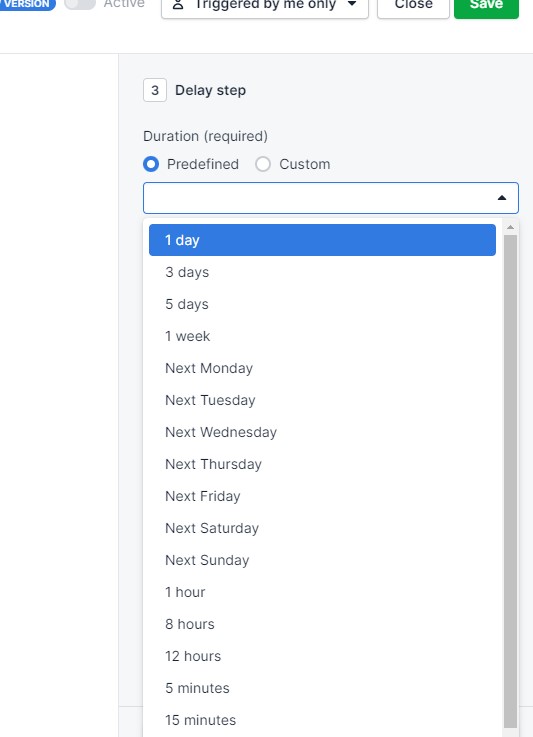
Select “Apply Delay”, and that should do the trick. The next step will trigger after that amount of time set has passed.